How to Make an AI Growth Video From Photos (2026 Guide)
Learn how to make an AI growth video from one or multiple photos without face flicker. Compare models, framing specs, prompts, and 9:16 export tips.
To make an AI growth video from photos without melting faces or distracting flicker, start with one clean, front-facing portrait (or 2–4 matched milestone photos), keep head scale and lighting consistent, pick a video model that matches your target aspect ratio, and describe gradual facial aging rather than rapid camera movement. Most smooth baby-to-adult timelapses work best in 5–10 second clips where the camera stays nearly still so the model spends its motion budget on natural age progression.
If you want a ready-made workflow without stitching frames in a desktop editor, you can upload a single portrait directly in GrowUpAI's AI growth video generator and select your target age, model, resolution, and duration. Every AI growth video is a creative visualization rather than a real prediction of how someone will age.
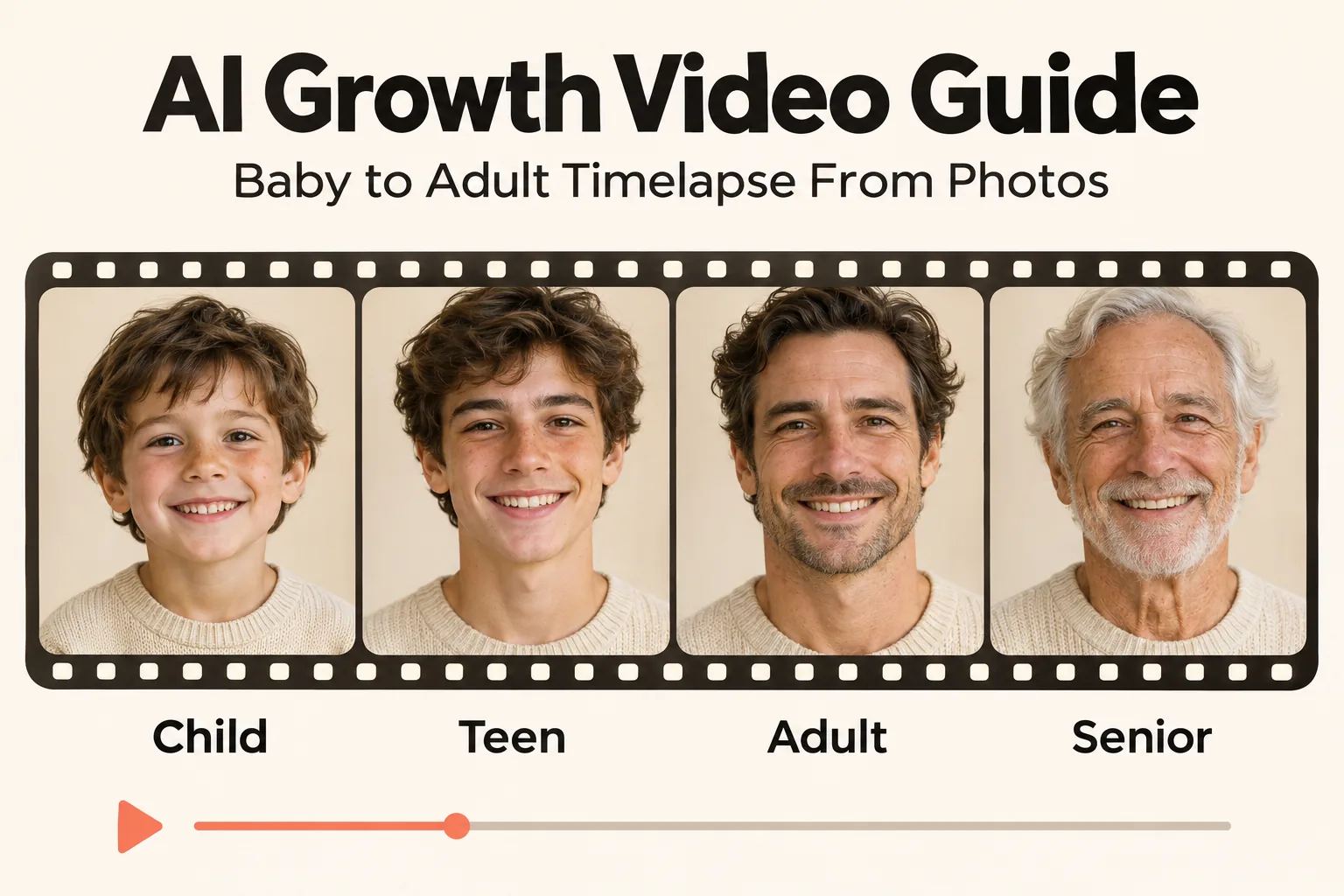
Single photo vs. multi-photo: which workflow should you choose?
Choose a single-photo growth workflow when you only have one clear childhood or current portrait and want the fastest path from upload to downloadable video. Choose a two-stage anchor-frame workflow (generating still milestone portraits first, then animating) when facial likeness across a wide 30–60 year age span matters most, and use multi-photo chaining when you already own real photos from multiple decades.
| Workflow | Photos needed | Best for | Likeness stability | Effort & cost |
|---|---|---|---|---|
| Direct single-photo video | 1 clean portrait | Fast birthdays, social reels, seeing yourself or a child grow up in one step | Moderate to high (best for 15–40 year spans) | Lowest effort; one video job |
| Single photo + still milestone anchors | 1 photo + 1–2 generated milestone portraits | Wide jumps (baby to 30-year-old or 25 to 75) where you want to approve the older face before spending video credits | Highest for projected ages | Medium; preview still portraits first |
| Real multi-photo start/end chaining | 3–5 real photos across life stages | Memorial tributes, graduation videos, anniversaries using real family history | Highest for real past milestones | Higher; requires matching crops & stitching |
If you only have one childhood photo and want to verify how the adult face looks before generating video, create a still milestone portrait first with the child-to-adult photo tool or preview an older stage with the AI aging filter. Approving the still face first prevents wasting video credits on an expression or age target you do not like.
Photo preparation checklist to prevent face flicker
Video models read your starting frame pixel by pixel and carry every flaw forward into motion. Preparing a crisp, evenly lit portrait where the face occupies roughly 25%–40% of the frame prevents more identity drift than rewriting your motion prompt five times.
Use this pre-upload checklist before starting a generation:
| Photo factor | Target standard | Why it matters in motion | What to avoid |
|---|---|---|---|
| Pose & angle | Front-facing or slight 3/4 turn, eyes level | Keeps nose bridge, jaw, and cheekbones symmetrical while aging | Steep side profiles, tilted chins, or looking down |
| Face size & framing | Head and shoulders visible (25%–40% of frame height) | Gives the model room for hair, neck, and natural shoulder maturation | Extreme tight face crops or tiny distant faces in group shots |
| Lighting | Soft, even daylight or neutral indoor light | Prevents shadows from turning into dark creases or blotches mid-clip | Harsh camera flash, heavy sunset color casts, or half-lit faces |
| Obstructions | Eyes, eyebrows, and mouth clearly visible | Anchors the key facial landmarks that viewers recognize | Sunglasses, pacifiers, hands over cheeks, heavy beauty filters |
| Print condition | Flat, glare-free scan or clean high-res JPG/PNG | Stops paper dust and glossy reflections from shimmering as video artifacts | Phone snapshots of glossy albums taken with flash |
If your starting childhood image is a faded, scratched, or low-contrast paper print from decades ago, run a quick cleanup pass in GrowUpAI's old photo restoration tool before generating motion. Starting from clean skin texture and clear eyes makes the entire video transition noticeably smoother.
How to make an AI growth video in 4 steps
A reliable AI growth video follows four controlled stages: prepare one clean portrait, choose the right age direction and span, match your video model to the platform aspect ratio, and review the rendered clip for facial continuity before sharing.
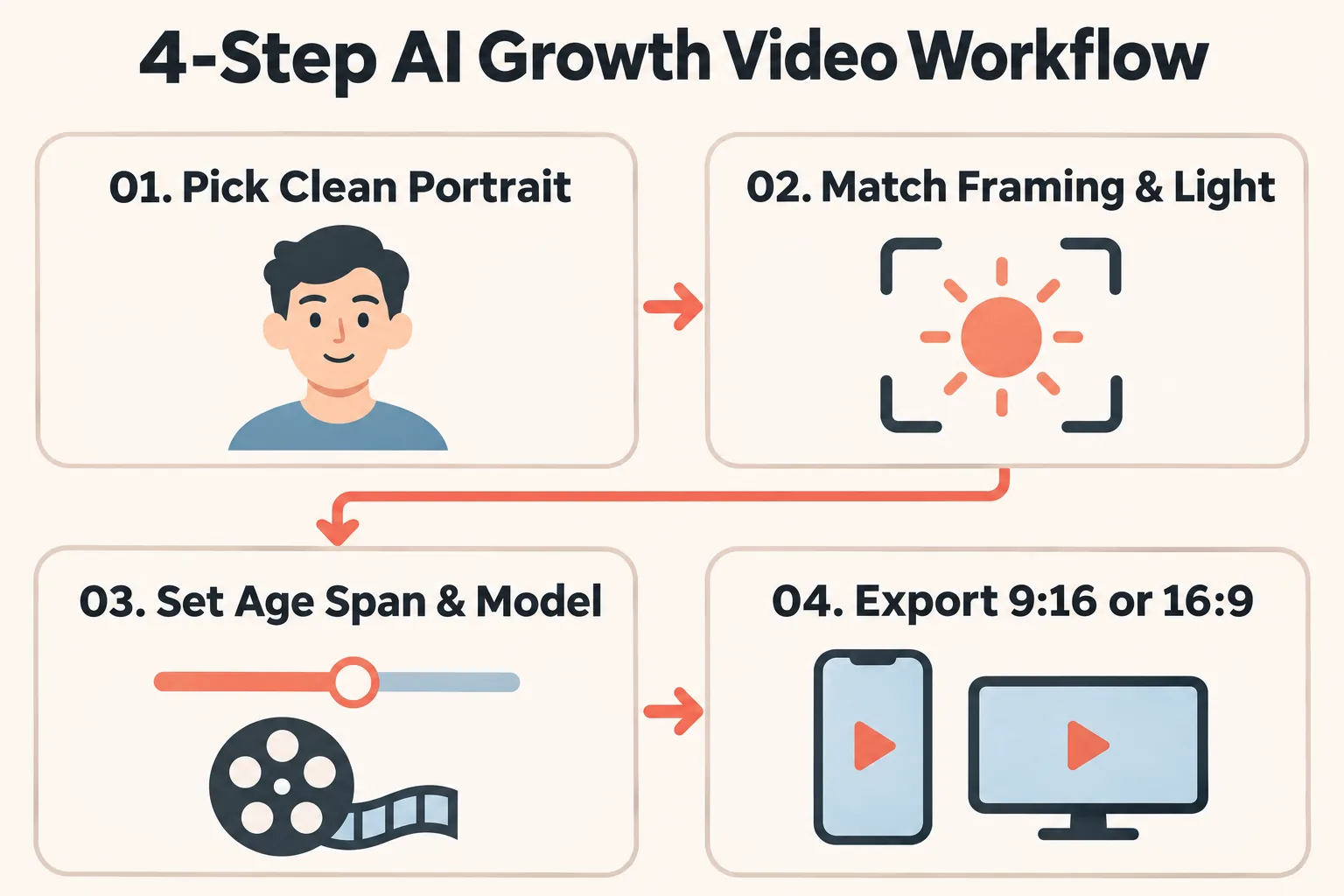
Step 1: Upload a clean starting portrait
Pick one sharp image of a single person—avoid group portraits where a second face sits near the shoulder, as video models sometimes blend neighboring features during long transitions. High-resolution phone photos are fine, and modern uploaders automatically resize oversized images cleanly without losing facial detail.
Step 2: Choose your age mode and realistic target span
Decide whether you are running a child-to-adult progression (showing a younger portrait maturing into adolescence or adulthood) or a future-self progression (aging an adult into later decades). As a practical rule of thumb, transitions spanning 15 to 40 years inside a single 5–10 second clip look far more natural than forcing a 5-year-old into an 85-year-old in 4 seconds.
Step 3: Match the video model, resolution, and aspect ratio to your platform
Different AI video models balance speed, duration limits, aspect ratios, and credit cost differently. Below are the verified model capabilities available inside GrowUpAI's AI growth video tool (checked on 2026-11-27):
| Video model | Duration range | Resolutions | Aspect ratios | Audio option | Best use case |
|---|---|---|---|---|---|
| MiniMax H3 | 4–15s (1s steps) | 768P, 2K | Adaptive (follows source photo) | Video only | Crisp portrait detail and cost-efficient 5–10s transitions |
| Seedance 2.5 | 4–30s (1s steps) | 480p, 720p, 1080p | Adaptive, 9:16, 16:9, 1:1, 3:4, 4:3, 21:9 | Optional native audio | Strict vertical 9:16 Reels/TikTok exports or longer 12–20s timelines |
| Wan 2.5 | 5s or 10s | 720p, 1080p | Auto | Video only | Quick 5s or 10s standard HD clips with balanced pricing |
- For TikTok, Instagram Reels, and YouTube Shorts: pick 9:16 (or crop your source portrait to vertical 9:16 when using an adaptive model) and aim for 6–10 seconds at 720p/768P or higher.
- For family slideshows, graduations, and YouTube: pick 16:9 or 3:4, keep camera motion locked, and add nostalgic music afterward in CapCut or your preferred editor if you did not enable generated audio.
Step 4: Inspect the clip frame by frame before downloading
Play the finished video once at normal speed and once by scrubbing slowly across the middle frames. Confirm that the eyes stay aligned, clothing transitions do not jitter wildly, and the final target age looks natural rather than overly stylized. Download the full-resolution MP4 as soon as you approve it.
Copy-paste prompts for smooth AI aging videos
When a video generator gives you a custom prompt field, short, camera-locked instructions outperform long cinematic paragraphs. Focus on three elements: steady framing, gradual age progression, and identity continuity.
1. Baby or child to adult portrait timelapse
"Locked-off front-facing portrait timelapse. The child in the reference photo gradually grows older into a natural 25-year-old adult. Preserve eye shape, smile, skin tone, and core facial identity throughout the transition. Soft even daylight, neutral uncluttered background, subtle natural breathing and blinking, no sudden camera cuts."
2. Adult to older future-self aging video
"Static head-and-shoulders studio portrait. The person in the uploaded photo ages smoothly from their current age to 65 years old. Gradual, realistic skin texture maturation, subtle laugh lines, and natural silver-gray hair progression while keeping bone structure, eye color, and expression consistent. Soft window light, steady camera."
3. Chained start-to-end milestone clip (for multi-photo editors)
"Smooth continuous facial morph between the start frame and end frame showing natural human aging across one decade. Keep eye alignment fixed in the center of the frame, transition clothing and lighting gradually without flashing, realistic photographic skin texture, steady tripod shot."
4. Restored vintage print to modern portrait animation
"Gentle photographic timelapse starting from the restored childhood portrait and maturing naturally into a clear modern adult portrait. Keep facial proportions recognizable, soften background transitions, maintain natural eye contact, avoid artificial glamour smoothing or rapid zoom."
Want more prompt patterns specifically for still child-to-adult images before animating? See our 7 child and adult AI photo prompts guide.
Troubleshooting common AI growth video artifacts
Most visual glitches in AI aging videos come from mismatched input framing or overly ambitious prompts rather than broken models. Match the symptom you see to the targeted fix below before regenerating:
| Visual symptom | Most likely cause | Practical fix |
|---|---|---|
| Face briefly "melts" or looks like a stranger mid-clip | Clip duration is too short for a 50+ year jump, or source photo is blurry | Shorten the age jump (e.g., child → 22 instead of child → 75) or increase duration from 4s to 8–10s |
| Background warps or morphs into random objects | Cluttered room, crowds, or strong patterns behind the subject | Crop slightly closer to head-and-shoulders or choose a portrait with a plain wall/soft bokeh backdrop |
| Clothes flash or rapidly change patterns | Prompt mentions too many outfit eras or busy striped/logo shirts | Specify simple neutral clothing transitions and remove multi-era costume words from the prompt |
| Eyes drift off-center or blink unnaturally | Source face was photographed at a steep angle or wearing reflective glasses | Swap to a front-facing photo without glasses glare and add "steady eye alignment, locked camera" |
| Output looks overly glossy or plastic | Prompt includes buzzwords like "4K glamour," "hyper-detailed cinematic beauty," or "flawless skin" | Replace glamour adjectives with "natural photographic skin texture, realistic lighting" |
Privacy, consent, and realistic expectations
AI growth videos are creative visual stories, not biological forecasts. Even when an underlying image-to-video model preserves eye shape, skin tone, and facial structure well, real human aging depends on genetics, health, lifestyle, and environment that no single photograph contains (see our explainer on how AI age progression works).
Before uploading portraits to any online video tool:
- Use photos you have permission to edit, especially when animating images of children, relatives, or friends.
- Label shared social clips clearly as AI-generated creative timelapses so viewers know they are watching an imaginative visualization rather than real archival footage.
- Keep your original master photo archived separately so you always retain an untouched family copy.
Frequently asked questions
Can you make an AI growth video from just one childhood photo?
Yes. You can upload one clear front-facing portrait directly into an AI growth video generator, or first generate an approved adult milestone image with a child-to-adult photo tool and animate the transition.
Why do faces flicker or warp in AI aging timelapse videos?
Flicker usually happens when the input photo has harsh flash glare, a steep side angle, or a cluttered background, or when a very short 4-second clip tries to span 50+ years at once. Even lighting, front-facing alignment, and a 6–10 second duration keep features steadier.
Which aspect ratio and duration work best for TikTok, Reels, and YouTube Shorts?
Choose 9:16 vertical for TikTok, Instagram Reels, and YouTube Shorts, and 16:9 for horizontal family slideshows or YouTube. Durations of 5–10 seconds give the model enough frames for gradual aging without dragging out pacing.
Should I restore a faded childhood print before making an AI growth video?
Yes. Scratches, creases, and yellowing in the first frame often shimmer or distort during motion generation. Running a clean pass through an old photo restoration tool first gives the video model sharper facial landmarks to track.
Are AI growth videos real predictions of how a child will look?
No. They are creative, AI-generated visualizations built from learned visual patterns and should be enjoyed as keepsakes or entertainment rather than accurate forecasts of future appearance.
Next step: create your AI growth video
Pick one well-lit, front-facing portrait, choose a realistic target age span, and match the output ratio to where you plan to share it. Ready to test it with your own photo? Open GrowUpAI's AI growth video generator to choose MiniMax H3, Seedance 2.5, or Wan 2.5 and render a downloadable timelapse in minutes.