Child and Adult AI Photo Prompts: 7 Ideas
Copy 7 child and adult AI photo prompts for realistic age progression. Learn what to preserve, adapt a reference photo, and fix common face drift.
A child and adult AI photo prompt works best when it names the source photo, the target age, the features to keep recognizable, and the changes the model may make. Copy one of the seven templates below, replace the bracketed details, and use it with an image editor that accepts a reference photo. The output is an imaginative image, not a prediction of how a real child will look.
If you want to create a result after choosing a prompt, use the GrowUpAI child-to-adult tool. The guide below explains how to steer a prompt and what to expect before you upload a photo. For a child-to-adult transformation, one clear face and one target age are easier to review than a crowded multi-panel request.
Start with a prompt that anchors the transformation
A vague instruction such as “make this child an adult” leaves the model to invent the age, setting, face changes, and photographic style. A more useful AI age-progression prompt separates those choices. State one target age, name a few identity cues to preserve, and describe only the changes needed to make the person look older.
Use this formula as a starting point:
| Prompt part | What to specify | Example |
|---|---|---|
| Reference | Which uploaded image is the source | “Use the attached childhood portrait as the only identity reference.” |
| Target | A single adult age or life stage | “Show a plausible 25-year-old version.” |
| Continuity | Features that should remain recognizable | “Keep the eye shape, smile, skin tone, and overall face proportions.” |
| Age changes | Changes that can happen naturally | “Use mature facial proportions and age-appropriate styling.” |
| Scene | What may change around the face | “Keep a simple neutral background and soft window light.” |
| Limits | What the model should avoid | “Do not add a second person, text, logos, or dramatic beauty edits.” |
The formula helps make the request specific; it cannot force an image model to preserve an identity exactly. If the tool has a reference-image strength or image-editing control, use a moderate setting first and compare the result with the original.
7 child and adult AI photo prompts to copy
Replace the brackets before submitting a prompt. If your image tool supports only text-to-image, the model may create a new adult face rather than edit the child in your photo. Choose an image-to-image or reference-photo workflow when likeness matters.
1. Natural adult portrait
Use this for a simple, realistic child-to-adult transformation without adding a story or elaborate background.
Use the attached childhood portrait as the identity reference. Create one respectful, natural-looking adult portrait of the same person at about [age, such as 25]. Keep recognizable cues such as eye shape, smile, skin tone, and the broad proportions of the face. Show realistic age-appropriate growth rather than wrinkles or exaggerated features. Keep the original camera angle, expression, and soft natural lighting. Use a plain background. Do not add another person, text, makeup, logos, or stylized beauty edits. This is a creative interpretation, not a factual prediction.
2. Teen-to-adult milestone
Choose this when you want one defined point on a timeline rather than a collage. Run separate generations for other ages so the model does not have to divide its attention across panels.
Based only on the attached child portrait, create a possible version of this person at age [18 or older]. Preserve the visible identity cues and overall expression while allowing natural growth in face shape and styling. Keep clothing age-appropriate and non-revealing. Frame the result as a straightforward portrait with even daylight and a quiet background. Avoid changing the person's apparent ethnicity, adding other people, or presenting the image as a real prediction.
3. Several ages, generated one at a time
A series can make a useful family keepsake. Asking for one image per age is often easier to review than a prompt that requests many small panels at once.
Use the same childhood reference photo to create one portrait at age [18]. Keep the framing, background, expression, and lighting close to the reference. Preserve the recognizable face cues while showing a plausible age transition. Do not combine ages in one frame. I will use the same instruction with the same source photo for the next target age. Do not claim the image predicts the actual future.
Repeat the prompt with a different target age. Keeping the same source and scene gives you a cleaner visual comparison, although the model may still change small details.
4. School-photo to adult headshot
Use this for a calm, studio-style result. The school background can change, while the face and pose remain the focus.
Turn the attached school portrait into a respectful adult headshot of the same person at [age]. Keep the same approximate head angle, eye direction, smile, and recognizable facial cues. Allow natural growth and age-appropriate hair and clothing. Replace a busy school-photo background with a soft, plain studio backdrop and balanced light. Do not add a uniform, text, badge, watermark, or dramatic retouching.
5. Same setting, later chapter
This variation keeps one visual detail from a meaningful place or activity while making the subject visibly older. Avoid copying school uniforms or other child-specific clothing into the adult result.
Create a possible adult version of the person in the attached childhood photo, now [age], in a similar [park, garden, or neutral outdoor setting]. Keep the person's recognizable facial cues and general camera framing. Change the outfit to simple clothing suitable for an adult; let the background remain subtle. Use natural, realistic light and an ordinary expression. Keep the image respectful, do not add captions or other people, and do not imply that this is the person's real future.
6. Age-stage strip with clear separation
Use a multi-stage layout only if your image tool follows layout instructions reliably. If it merges faces or ages, create each stage separately instead.
Use the attached childhood portrait as the only identity reference. Create a clean three-panel age progression showing the same person at [childhood age], [young-adult age], and [later adult age]. Keep one portrait per panel, with equal crop, consistent lighting, and a simple background. Show gradual, plausible changes while keeping recognizable cues. Do not repeat a panel, change the number of people, add labels, or make the result look like a verified forecast.
A triptych is a visual comparison, not evidence of how the person will actually age. If consistency is more important than presentation, use template 3 and arrange the individual results yourself.
7. Child and adult versions together
This is a different task from aging one photo. It asks the model to place a child and an adult interpretation in one scene. Use it only if the editor can accept the childhood portrait as a reference; for the most control, describe the second figure as an imagined adult counterpart.
Use the attached childhood portrait as the reference for the child in the scene. Create a gentle, fictional keepsake image with the child seated beside an imagined adult version of the same person at [age]. Keep the child's appearance and clothing age-appropriate. Make the adult figure a plausible visual interpretation, not a verified future self. Use natural expressions, respectful body language, simple clothing, and soft daylight. Do not imply a real meeting, add text, or alter any unrelated person in the source.
If your tool cannot preserve the child reference while adding a second figure, create the adult portrait first and combine images only in an editor you trust. Do not assume a text prompt alone can identify a person across two photos.
One photo or two people in one frame?
A one-photo age-up prompt uses one childhood image and asks for a single adult-looking result. That is the clearest workflow when the goal is to explore a child-to-adult transformation. A two-person composite prompt creates a scene with both the child and an imagined adult counterpart. It needs more composition instructions and may be less consistent because the model must manage two faces.
Do not mix the instructions. If you want one person at age 25, say “one adult portrait.” If you want a child beside an imagined adult version, say “two people in one scene” and describe where each person should appear. Naming the layout prevents the model from returning a split panel when you expected one face.
Adapt a prompt for ChatGPT or another image editor
The phrase “keep the same person” is only an instruction. A model that cannot use a source photo cannot reliably transform that particular face. Before pasting a childhood photo prompt, check that the product supports image upload or image editing and that the selected mode is using the attached image.
For a ChatGPT childhood photo prompt, put the source reference first, state the requested age second, and put scene or clothing preferences last. A useful AI prompt for editing an existing image of kids identifies the attached photo as its only identity reference before asking for style changes. This ordering makes the core edit easier to identify if you need to shorten the instruction. Use plain language: “preserve the same smile and eye shape” is more actionable than “make it look exactly like them.” If the result changes too much, remove decorative details instead of adding a longer list of style words.
Choose a useful reference photo
A prompt can describe an edit, but the reference photo gives the model the visual starting point. A straight-on image with visible eyes, even lighting, and one clear face is easier to work with than a distant group photo, heavy filter, or extreme side profile. A clear image does not guarantee a stable likeness; it simply removes avoidable ambiguity from the input.
Before using a child photo, consider who can access it and whether you have permission to upload and share it. Prefer a copy without names, school logos, location details, or other unnecessary identifying information. Do not upload someone else's child's image without appropriate permission, and avoid publishing a generated result in a way that could embarrass the person later.
How to interpret an age-progression example
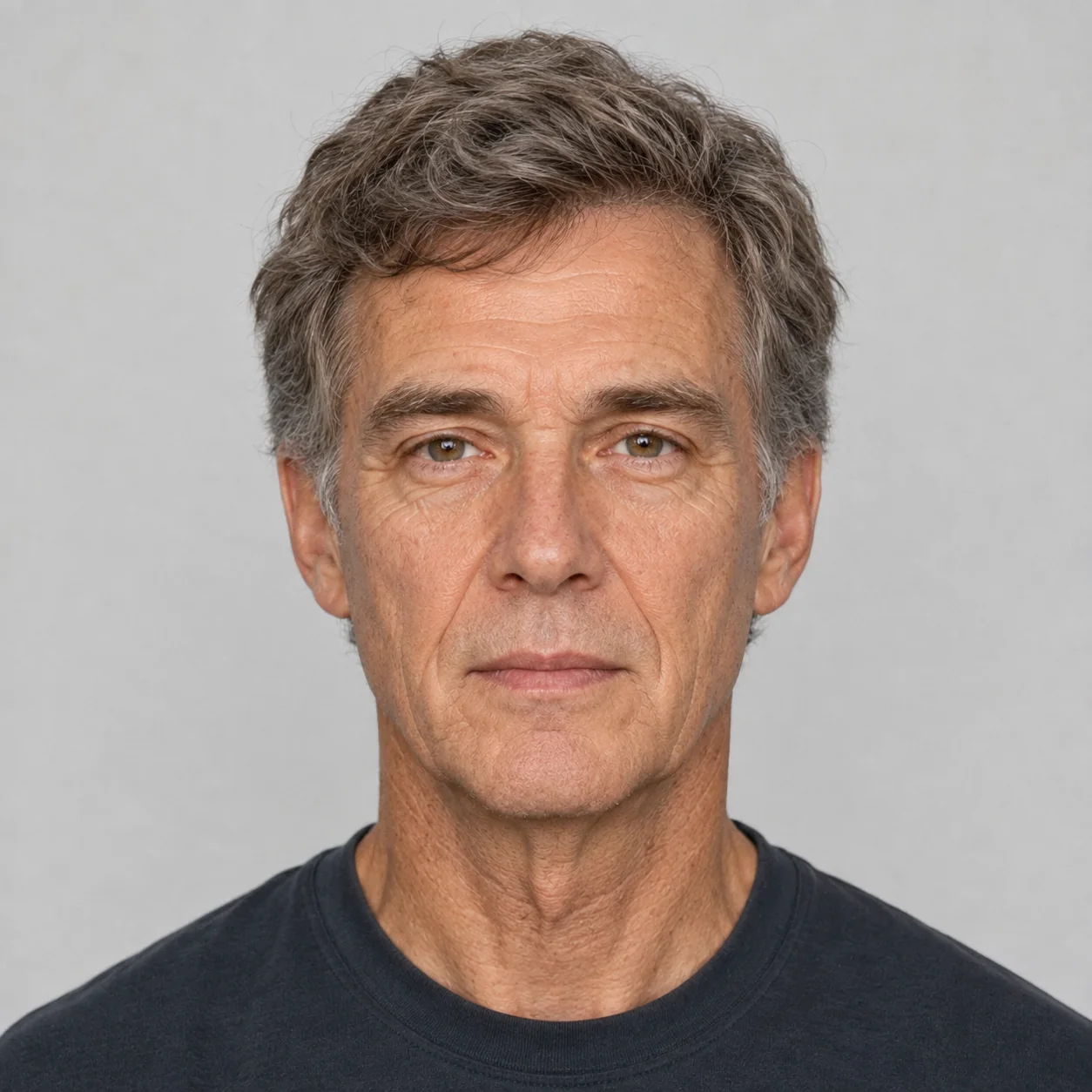
The first-party GrowUpAI example near the opening shows an AI-generated adult portrait. It illustrates a possible output style; its original reference photo is not shown, so it is not an identity comparison. A prompt controls the requested edit, while the model still decides how to render the result.
Fix common face-drift problems
| Result problem | Prompt adjustment | What it may help with |
|---|---|---|
| The face looks like a different person | Remove extra scene styling; explicitly keep eye shape, smile, skin tone, and camera angle | Gives the model fewer competing changes |
| The result still looks like a child | Name one adult target age and request natural growth in facial proportions and styling | Makes the age direction less ambiguous |
| The model adds wrinkles to a young adult | Say “adult age-appropriate features, no elderly wrinkles” | Separates adult growth from old-age effects |
| The background changes too much | Ask to keep the original crop and setting | Reduces unnecessary scene invention |
| A panel layout repeats or merges faces | Request a single portrait, or generate each age separately | Removes a difficult multi-panel constraint |
| The output adds text or a watermark | Ask for no visible text, logo, or watermark; use an editor that supports clean exports | Reduces common presentation artifacts, but the tool may still add marks |
Change one instruction at a time. If you rewrite the prompt, switch the model, and upload a different photo in one retry, you will not know which change improved the result.
FAQ about child-to-adult photo prompts
What is a child and adult AI photo prompt?
It is an image-editing instruction that asks a model to create an adult-looking interpretation from a childhood reference photo. It usually names the target age and the visual cues to preserve. It is not a method for learning how the person will actually look later.
How do age progression photos work?
An image model interprets the supplied portrait and prompt together. The prompt describes the desired age direction, while the reference image provides visual context. Different tools use different controls, so results vary by model, source photo, and settings.
Can a prompt keep the child's face exactly the same?
No prompt can guarantee an exact match. You can ask the model to preserve visible traits such as eye shape, smile, skin tone, and camera angle. Compare the result with the source and treat it as a creative approximation.
Can I use a ChatGPT prompt with any image generator?
You can adapt the wording, but a text-only generator may invent a new person because it does not edit the attached photo. Choose a product that supports image references when the transformation needs to use a particular child portrait.
What should an AI prompt for editing an existing image of kids include?
Start by naming the attached childhood photo as the only source reference, then state one adult target age and two or three visible features to retain. Add background or clothing preferences only after the identity and age instructions are clear.
Should I make one adult portrait or a child-and-adult composite?
Use one adult portrait when the goal is a single age-up result. Use a composite only when you specifically want the child and an imagined adult counterpart together; it is a harder composition and should be labeled as fictional.
What should I do if the generated image looks unlike the reference?
Use a clearer, permitted photo; simplify the background request; name two or three visible cues to retain; and generate one target age at a time. If the result remains inconsistent, the model may not support strong identity preservation.
Try a child-grown-up result
Once you have chosen a target age and prompt style, you can try the GrowUpAI child-to-adult image tool. The page explains the current upload workflow and its creative limits. Treat every generated image as a visual possibility, and share it only when the people in the photo are comfortable with that use.