How to Make Someone Look Older in a Photo With AI: A Practical Guide
Learn how to make someone look older in a photo with AI using a clear reference, one target age, restrained prompts, and a review checklist.
If you want to know how to make someone look older in a photo, the most reliable workflow is to treat AI as an image editor, not a fortune teller. Start with one permitted portrait, choose one target age, ask the model to preserve a few visible identity cues, and keep the background and camera angle simple. Then review the output for face drift before you share it. The result can look convincing while still being a creative interpretation rather than a prediction of how that person will age.
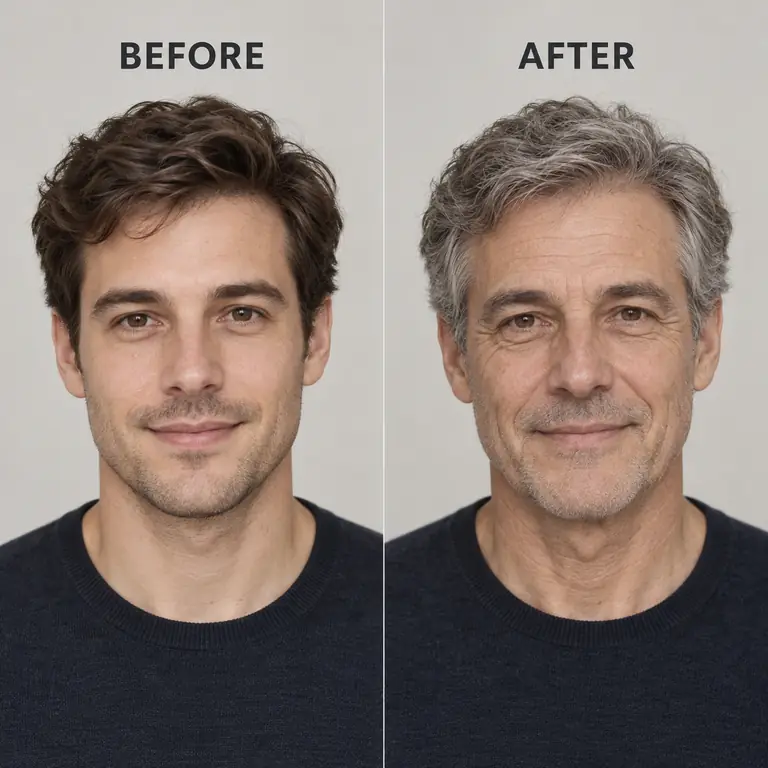
This guide separates the practical photo steps from the limits that are easy to miss. It also gives copy-ready prompts, explains why an AI aging photo can change unrelated details, and shows when to use a dedicated AI aging filter or future face tool instead of a general image editor.
The short answer: use one photo and one target age
The clearest way to make a photo look older is to reduce the number of decisions the model has to make. Use one face, one target age, one consistent camera angle, and a quiet background. A request such as “make this person look 55” is easier to review than a request for a whole life timeline, a new location, dramatic lighting, and several people in one frame.
An AI aging photo is a generated edit. It may change hair, skin texture, expression, teeth, clothing, or lighting while it tries to preserve the broad face shape. Even if the eyes and smile remain recognizable, the output does not show the person's actual future. Keep that distinction in the caption or description whenever you publish the image.
Prepare the reference photo
The input photo gives the model its strongest visual information. A clear source cannot guarantee a stable likeness, but it removes avoidable ambiguity.
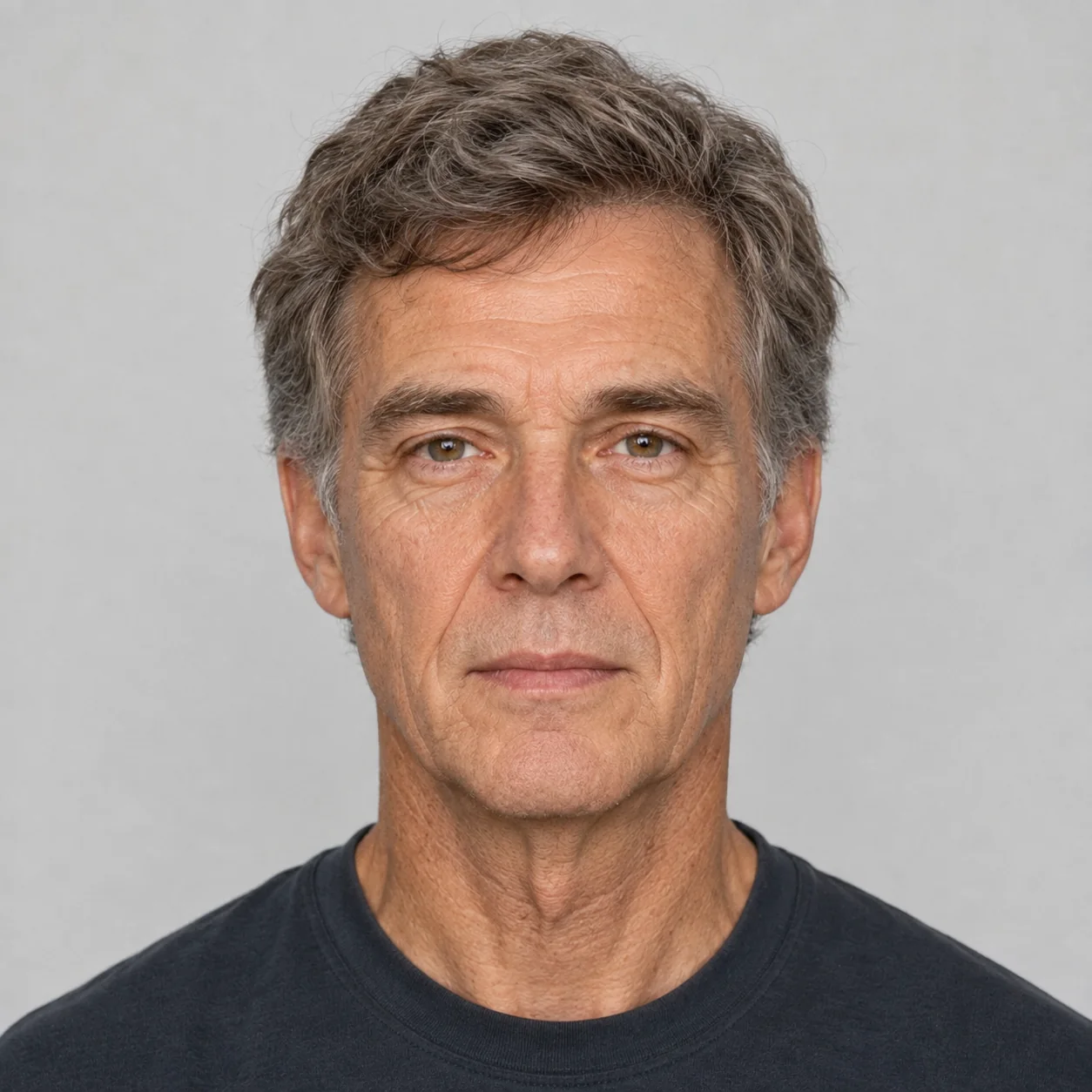
Before you upload, check these points:
- One visible person: A group photo gives the model several faces and competing identity cues. Crop to the person you are authorized to edit.
- Visible eyes and face outline: Avoid sunglasses, hands, hair across the eyes, heavy masks, and extreme side profiles.
- Even light: Strong shadows can be mistaken for wrinkles or change the apparent shape of the face.
- Useful resolution: The face should be large enough to inspect. A tiny face in a wide landscape leaves too little detail for a controlled edit.
- A stable frame: A mostly front-facing or slight three-quarter pose is easier to compare across runs than a changing camera angle.
- Permission: Use a photo you own or are authorized to process. For a child's photo, consider guardian consent, storage terms, and whether the result should be shared at all.
Remove names, school badges, location details, and other information that the edit does not need. Check the service's retention and deletion policy before uploading a sensitive portrait; GrowUpAI explains its handling in the privacy policy.
A five-step AI aging photo workflow
1. Choose the target age
Pick one concrete age or a narrow life stage. “Age 45” gives the model a clearer direction than “make the person older.” If the change looks unstable, try a smaller jump first and compare the results. A sequence made one age at a time is usually easier to inspect than a single collage with ten stages.
2. Describe what should stay recognizable
Name two or three features that are actually visible in the source: eye shape, smile, skin tone, face outline, or camera angle. Avoid demanding an “exact” identity match. A prompt cannot force a model to preserve a face perfectly, and an absolute instruction can encourage strange artifacts.
3. Keep the requested changes narrow
Describe natural age cues and leave decorative choices out of the first attempt. Ask for age-appropriate hair and facial texture, a neutral expression, and the same simple background. Add a new setting or fashion style only after the basic edit is coherent.
4. Generate one version and review it
Look at the whole image, not only the skin. Compare the eye spacing, jawline, nose, ears, hairline, teeth, and background with the source. A result can have realistic wrinkles while quietly changing the person. Save the prompt and source photo for any retry so you know what changed.
5. Export with a clear description
If you post the result, call it an AI-generated age edit or visualization. Do not label it as a real future photograph, a medical assessment, an identity record, or evidence of how a child will look as an adult. A short disclosure prevents a polished image from being misunderstood.
Copy-ready prompts for making a photo look older
Use the wording as a starting point and replace the bracketed age. If your product has a reference-image or image-editing mode, select it explicitly; a text-only generator may invent a new person.
Neutral older portrait
Use the attached portrait as the only identity reference. Create one respectful, natural-looking portrait of the same fictional person at about [45] years old. Preserve the visible eye shape, smile, skin tone, broad face proportions, camera angle, and soft lighting. Add subtle, age-appropriate changes to hair and facial texture. Keep one person and a plain background. Do not add text, logos, another person, dramatic makeup, or a beauty filter. This is a creative AI visualization, not a factual prediction.
Same setting, later age
Edit the attached portrait to show a possible version of the same person at age [60]. Keep the crop, head angle, expression, and background close to the source. Use natural older-adult features without exaggeration. Change only what is needed for the age direction; do not introduce a new location, wardrobe story, watermark, caption, or second face. Treat the output as generated artwork rather than a real forecast.
Compare several ages safely
Use the attached portrait to create one image at age [35]. Keep the same neutral framing and lighting. Do not combine multiple ages in one panel. I will run the same source through separate requests for [45] and [55] so I can compare each generated edit. Preserve a few visible identity cues, avoid text and logos, and describe every result as an AI visualization.
Generating each age separately makes changes easier to spot. A collage can be useful for a personal keepsake, but small panels often repeat faces, merge features, or hide artifacts.
How to reduce face drift and odd artifacts
Face drift means the output no longer resembles the source closely enough for the intended comparison. It can happen even with a good photo because an image model has to invent details that are not present in the reference.
| Problem | Try this adjustment | Why it helps |
|---|---|---|
| The face becomes a different person | Remove scene and clothing details; keep only three identity cues | Fewer competing instructions leave more attention for the face |
| The result looks elderly instead of adult | Use a precise adult age and say “age-appropriate, not elderly” | Separates ordinary adult change from an old-age filter |
| The background or crop shifts | Ask to keep the original frame and plain setting | Makes the before/after comparison easier |
| The model adds text or a watermark | Request no visible text and use a clean export mode | Reduces presentation artifacts, though it cannot guarantee removal |
| A multi-age panel merges faces | Generate one target age per request | Removes a difficult layout constraint |
| Two retries look unrelated | Change one variable at a time and reuse the source | Makes the cause of an improvement easier to judge |
The how AI age progression works guide explains why generative edits vary between services and runs. The same identity and prediction limits apply when you compare multiple age-stage images.
Before-and-after review checklist
Use this checklist before downloading or sharing an older-looking portrait:
- Identity cues: Do the eye placement, face outline, smile, and distinctive marks remain reasonably consistent?
- Unrequested edits: Did the model change hair color, teeth, clothing, background, or apparent ethnicity without being asked?
- Age direction: Does the image show an age-appropriate change, or did it add exaggerated wrinkles and stereotypes?
- Artifacts: Inspect eyes, teeth, ears, hands, hairline, glasses, and background edges at full size.
- Consent and context: Do you have permission to edit and share the source? Would the person be comfortable with the result being public?
- Disclosure: Is the image clearly described as generated artwork when someone else could mistake it for a real photograph?
If the output fails one of these checks, discard it or retry with a simpler request. A more polished image is not automatically a more accurate one.
Is an AI aging photo a prediction?
No. The model generates pixels that fit the source image and the requested direction. It does not know the person's genetics, health, environment, lifestyle, future hairstyle, or any other factor that shapes appearance over time. This is why an image can look plausible and still be wrong in many small or important ways.
For children, use extra care. A generated adult portrait can be a family keepsake or creative experiment, but it should not be presented as the child's guaranteed future, a development assessment, or a factual identity record. The child-to-adult tool is designed around that use case and states the same creative boundary.
Frequently asked questions
How do age progression photos work?
An image model interprets a supplied portrait and an age direction, then synthesizes an older- or younger-looking edit. Different services use different models and controls, so the output can vary between tools and runs. It is an image-generation effect, not a measurement of biological age.
What photo works best for making someone look older?
A sharp, well-lit portrait with one visible face, visible eyes, a simple background, and a mostly stable camera angle is the easiest starting point. A clear photo improves the input, but it cannot guarantee that every feature will stay consistent.
Can AI make someone look older without changing their identity?
You can ask it to preserve eye shape, smile, skin tone, face proportions, and framing, but no prompt guarantees an exact match. Compare the output with the source and remove unnecessary style instructions when the face drifts.
Is “AI aging photo online free” the same as a free result on every site?
No. “Free” can mean a preview, a limited trial, or an app with paid exports. Check the current service terms, credit cost, retention policy, and download rules. GrowUpAI uses credits for generation rather than promising a free quota; the aging filter page explains the current workflow.
How would you look old with AI?
Use a permitted portrait, select one target age, ask for subtle age-appropriate changes, and review the full image for face drift. Treat the result as a creative visualization and disclose that it was generated.
Can I make one photo for each year of age?
You can generate a separate image for each selected age, but doing so creates many independent interpretations. Keep the source, framing, and prompt stable, then compare the images as artwork rather than a verified timeline.
Key takeaway
To make someone look older in a photo with AI, use a clear authorized portrait, choose one target age, preserve a few visible cues, keep the scene simple, and inspect the result before sharing. The practical workflow can produce a useful older-looking illustration, but it cannot reveal a person's real future. For a working tool, try the AI aging filter; for the “what will I look like when I'm older?” use case, see future face.
Sources and further reading
- NIST Face Analysis Technology Evaluation: Age Estimation and Verification — background on age estimation as a separate computer-vision task.
- Age Progression/Regression by Conditional Adversarial Autoencoder — an example research approach, not a specification for every current consumer tool.